
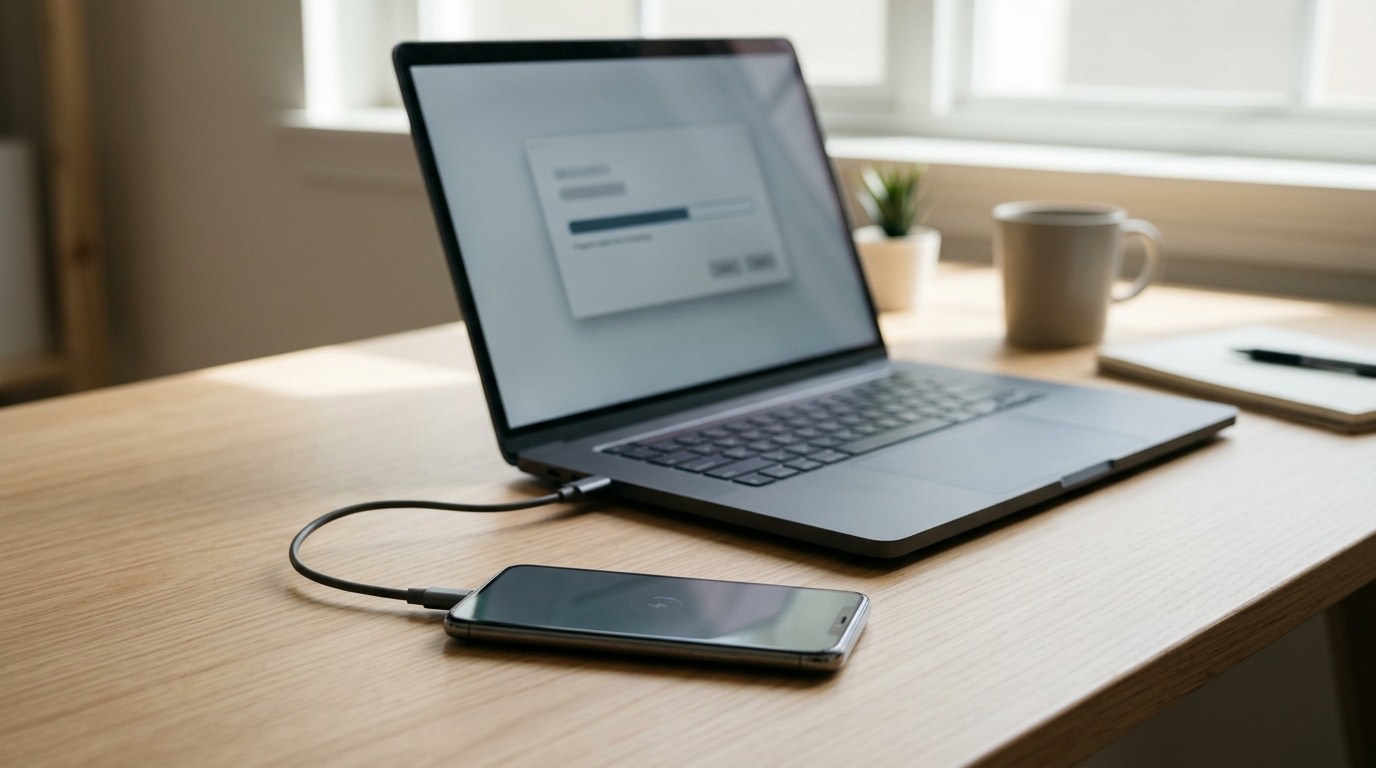
Who needs software help
Software problems come in many shapes. We help with phones that:
- Is stuck on the Apple logo, Samsung logo or Google logo and never finishes starting up.
- Restarts over and over (a boot loop).
- Froze during an update or shows a "connect to computer" screen.
- Is frozen and won’t respond to touch or buttons.
- Is extremely slow, with apps crashing, keyboard lag or settings that won’t open.
- Has run out of storage and can’t update or take photos.
- Shows constant pop-ups, odd apps or browser redirects.
- Needs a factory reset before selling or trading in and the owner wants it done properly.
- Is new and needs setting up, with accounts, email, contacts and apps moved over.
Many of these can be fixed without losing data. Some can’t. The most important part of software repair is knowing which is which before taking any step.
What we won’t do
To be clear from the start: we only work on phones that belong to you, or that you’re authorized to have repaired, and we don’t bypass security protections. That means we don’t remove or bypass:
- iCloud Activation Lock or Find My
- Google Factory Reset Protection (FRP)
- Samsung account locks or carrier locks
- Passcodes, PINs or patterns on phones that aren’t yours
- Mobile device management (MDM) profiles on company phones
These protections exist to make stolen phones useless. If you’ve forgotten your own Apple ID or Google password, we can help you through the manufacturer’s official account recovery process, and Apple and Google both offer proof-of-purchase support for genuine owners. If you’ve bought a second-hand phone that’s still locked to someone else’s account, the only legitimate fix is for the previous owner to remove it.
Common software problems and their causes
| Problem | Common causes | First steps |
|---|---|---|
| Stuck on logo | Failed update, corrupted system files, full storage, hardware fault | Force restart, then update or restore via computer |
| Boot loop | Bad update, incompatible app, failing battery or hardware | Safe mode (Android), update in recovery mode (iPhone) |
| Frozen phone | App crash, memory full, overheating | Force restart sequence for your model |
| Very slow | Nearly full storage, worn battery throttling, old OS, too many background apps | Storage clean-up, battery check, update |
| Apps crashing | Out-of-date apps, OS bug, storage issues | Update apps, clear cache, reinstall |
| Pop-ups and redirects | Malicious app or browser notifications | Remove app, reset browser notification permissions |
| Update keeps failing | Not enough storage, poor Wi-Fi, low battery | Free space, update via computer |
It’s worth knowing that a phone stuck on the logo can be a hardware problem disguised as a software problem. A failing battery, a damaged board or a bad storage chip can all cause boot loops. If software fixes don’t work, we’ll move to diagnostics and tell you before charging for anything further.
Forced restart: try this first
A forced restart doesn’t erase anything and often clears a frozen phone.
- iPhone 8 and later: press and release volume up, press and release volume down, then press and hold the side button until the Apple logo appears.
- iPhone 7: hold volume down and the side button together until the logo appears.
- Samsung Galaxy: hold the side button and volume down together for about 10 seconds.
- Google Pixel: hold the power button for about 30 seconds, or power and volume up on some models.
- Other Android phones: usually hold power for 10 to 30 seconds.
If the phone starts but freezes again, or never gets past the logo, the next steps are more involved and are where data can be at risk.
How we approach software repair
- Find out what’s on the phone and whether it’s backed up. If you have a recent iCloud or Google backup, the options are wider. If you don’t, we take a data-first approach.
- Least destructive fix first. We try options that keep your data before anything else: forced restarts, safe mode, clearing caches, updating over the existing system.
- Update without erasing. On iPhone, connecting to a computer in recovery mode gives two options: Update, which reinstalls iOS while keeping data, and Restore, which erases everything. We always try Update first. Android phones have comparable recovery options depending on the manufacturer.
- Ask before anything that could erase data. If the only remaining option is a restore or factory reset, we stop and explain. We need your clear, written authorization before going ahead.
- Check hardware if software steps don’t hold.
Customer authorization and privacy
Software work can mean handling a phone that holds your photos, messages, banking apps and work email. Our rules:
- We ask for your authorization in writing before any step that might erase data or change account settings.
- You can enter your own passcode when we need the phone unlocked for testing; you don’t have to tell us what it is.
- We don’t browse your content. We open only what is needed to test the problem you reported, and we tell you what we’ll open.
- We don’t keep copies of your data after a job unless you ask us to, for example during a transfer.
Operating system update assistance
Updates bring security fixes, but they also fail sometimes. We help with:
- Updates that won’t install because of storage, battery or network problems.
- Phones too old for the latest update, with an explanation of what that means for security and app support.
- Problems that started after an update, such as battery drain, overheating or apps crashing. Many settle after a day or two of indexing; if they don’t, we troubleshoot.
Factory reset assistance
Before you sell, trade in, give away or recycle a phone, it should be fully erased. We help you:
- Back up everything you want to keep.
- Sign out of iCloud and Find My (iPhone), or remove your Google and Samsung accounts (Android), so the next owner isn’t locked out.
- Remove eSIMs and transfer them where needed.
- Unpair watches and earbuds.
- Factory reset the phone and confirm it’s ready for a new owner.
Signing out of accounts before the reset matters. Skipping it is the main reason second-hand phones end up locked.
Phone setup and configuration
New phone? We can set it up with you: account sign-in, moving data from your old phone (see data transfer), email, contacts and calendar, two-factor authentication apps, accessibility settings, and privacy and security settings that are worth turning on, such as screen lock, Find My or Find My Device, automatic backups and automatic updates.
What affects cost and time
- How quickly the problem responds to the least destructive fixes.
- Whether data has to be preserved. A data-first approach sometimes takes longer.
- Storage size, since backups and restores of large phones take time.
- Whether a hardware fault is involved.
Simple fixes can take less than an hour. Restores and transfers of large phones can take several hours. Diagnostic fee: [DIAGNOSTIC FEE].
Storage full: what’s safe to clear
A nearly full phone is one of the most common causes of slowness, failed updates and crashing apps. Phones need free space to work; as a rough guide, keep at least 10% of storage free. What you can clear safely:
- Downloaded videos and music in streaming apps. You can download them again.
- Old message attachments. Both iPhone and Android can show large attachments in messages and let you delete them without deleting the conversation.
- App caches, on Android, through each app’s storage settings.
- Unused apps. iPhone can "offload" unused apps, keeping their data while freeing the app’s space.
- Duplicate photos and screenshots, once you’ve confirmed your photos are backed up.
Be careful about:
- Deleting photos to free space without a backup. Make sure they’re in iCloud Photos, Google Photos or on a computer first, and check the cloud copy, not just the setting.
- "Cleaner" apps that promise to speed up your phone. Many are unnecessary, show aggressive ads or ask for broad permissions. Your phone’s built-in storage tools do the same job.
Company, school and managed phones
If your phone was issued by an employer or a school, it may be managed by a device management system. That can restrict updates, install required apps, enforce passcode rules and allow the organization to erase the phone remotely. We don’t remove management profiles. If a managed phone has a software problem, contact your IT department first; they may need to push a fix or replace the phone. If you’re using a personal phone with a work profile, we can usually troubleshoot your personal side without touching the work profile, and we’ll check with you first.
Keeping your phone healthy
Most software trouble is avoidable with a few habits:
- Install updates within a week or two of release. They include security fixes.
- Keep automatic backups on and check occasionally that they complete.
- Restart the phone every week or so. It clears memory and stuck processes.
- Only install apps from the official app stores, and review app permissions now and then.
- Keep storage below about 90% full.
- Use a passcode and biometric lock, and turn on Find My or Find My Device.
- Be wary of messages asking you to install profiles or apps, or to share verification codes. Legitimate companies won’t ask for your codes.
Scam and security check-ups
If you think your phone or accounts may have been compromised, for example after clicking a suspicious text link, giving a verification code to someone, or seeing logins you don’t recognize, we can help you review the phone: unknown apps, installed profiles, accounts signed in to the phone, connected devices and security settings. We’ll also point you to the official steps for securing your Apple ID or Google account. If money or banking information is involved, contact your bank first, and consider reporting it to the Canadian Anti-Fraud Centre.
Supported devices
We troubleshoot software on iPhone, Samsung Galaxy, Google Pixel, Motorola, OnePlus and most Android phones. Very old phones that no longer get updates have fewer options, and we’ll tell you if a phone can’t safely receive current apps.
Before your appointment
- Check your backup status. On iPhone: Settings › your name › iCloud › iCloud Backup. On Android: Settings › Google › Backup.
- Know your Apple ID or Google account password. You’ll need it after many software repairs.
- Know your passcode, and be ready to enter it yourself.
- Have your two-factor authentication method available (another device or a phone number).
- Note when the problem started and whether it followed an update, a new app or a drop.
Warranty
For software work, warranties don’t apply the same way as for parts. Our policy: [CONFIRMED WARRANTY]. If the same software problem comes back soon after, contact us and we’ll look at it again.
Booking software help
- Request a quote with your model, what the phone is doing and whether it’s backed up.
- We reply with the likely approach and any risk to your data.
- Approve and book. You can [REPAIR MODEL: in-store / mobile repair / mail-in / combination].
- We fix, test and explain what happened and how to avoid it next time.
Frequently asked questions about software repair
My phone is stuck on the logo. Will I lose everything?
Not necessarily. Reinstalling the operating system without erasing, such as Update mode on iPhone, often fixes it and keeps your data. We always try that first and ask before anything that could erase data.
Can you unlock a phone I found or bought second-hand?
No. We don’t bypass Activation Lock, Factory Reset Protection, passcodes or carrier locks. If a second-hand phone is locked to someone else’s account, the previous owner needs to remove it.
I forgot my own passcode. Can you help?
On modern phones, a forgotten passcode can’t be bypassed without erasing the phone. We can help you erase it through the official process and restore from your backup, and help you recover your Apple ID or Google account if needed.
Is my phone too old to update?
Each manufacturer supports phones for a set number of years. We can check your model and explain what an unsupported phone means for security and app compatibility.
Can you remove a virus from my phone?
True viruses are rare on phones. Most problems are malicious apps, profiles or browser notification spam. We can find and remove them and secure the phone.
Do you set up new phones?
Yes. We can move your data, set up accounts and walk you through key settings.